WSUS Sync Errors after ConfigMgr Migration
2017-05-05 Leave a comment
With a lot of clients migrating from Configuration Manager 2012 R2 to Current Branch lately, I frequently see issues with WSUS and the Software Update Point after the migration. What seems to happen is that following migration, clients begin to hammer the new Software Update Point with requests, causing the Software Update Point to crash. You’ll see evidence of this in the component status for the Software Update Point, as well as WSUS Synchronization errors as well as other Software Update Point status logs and alerts.
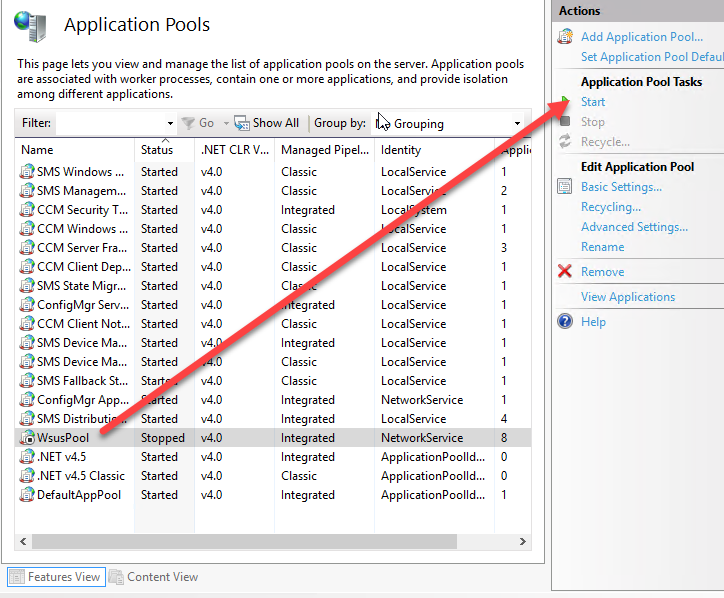
There is a lot of great information online about this.. Essentially what is typically happening is that the IIS WSUS Application Pool is running out of memory and crashing. When you install WSUS to support the Software Update Point role, the default private memory limit assigned to the WSUS App Pool is 1.8 GB. With all the additional workload being thrown at the SUP during the clients scans, what is happening is that this application pool is being overwhelmed and crashes. You can verify if this is your issue by checking the status of the WsusPool in the Application Pools node of IIS Manager on the Software Update Point. If the status is “Stopped”, then you know why your WSUS Sync and client Software Update scans are not succeeding.
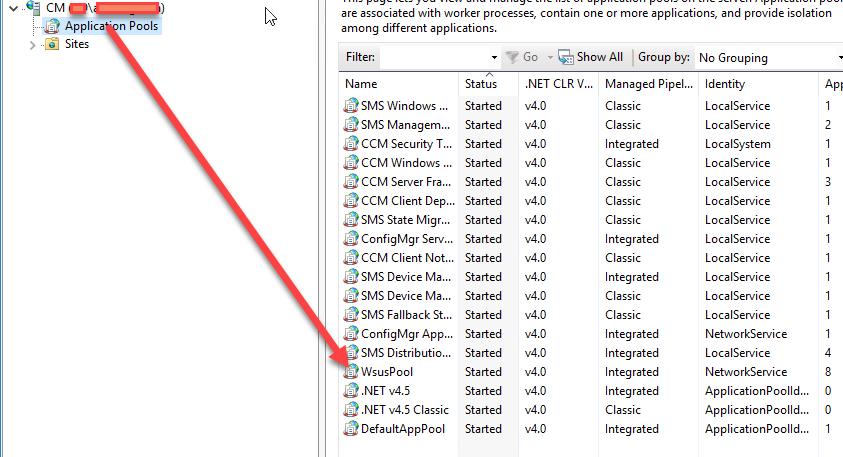
You can start the application pool again and clients will be back in business for a few minutes, at which point the pool will crash again. The fix for this is to increase the Private Memory Limit. In IIS Manager on the Software Update Point locate the WsusPool Application Pool.
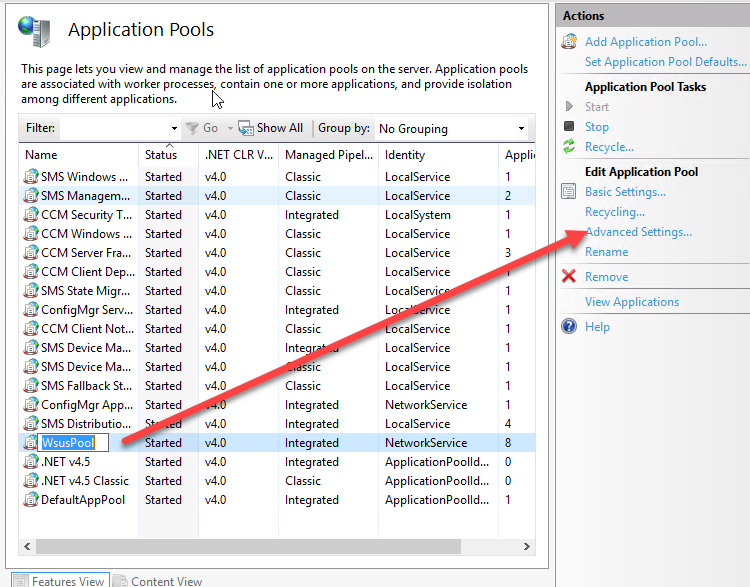
Go to the Advanced Settings for the Pool.
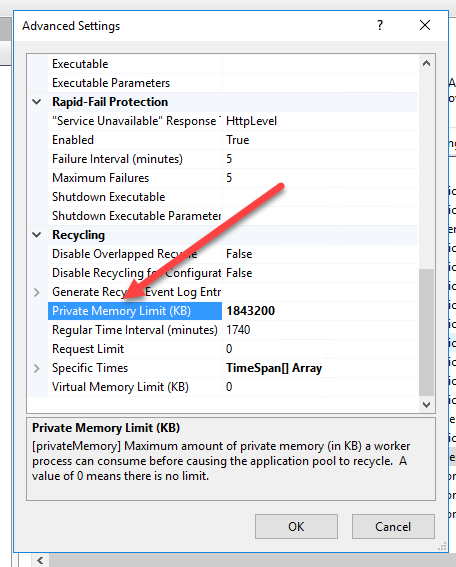
In the Advanced Settings, locate the “Private Memory Limit” setting and increase the pool associated with that pool. I’ve found for most of my clients that we need to increase the pool from 6 – 8 Gb in order to avoid crashes of the pool.
Once you increase the Private Memory Limit start (or restart) the Application Pool from the Application Pool tasks list
Problem solved. I generally kick off a Software Update Point sync and wait a few hours for that to complete at which time your software update point status should start returning to normal.
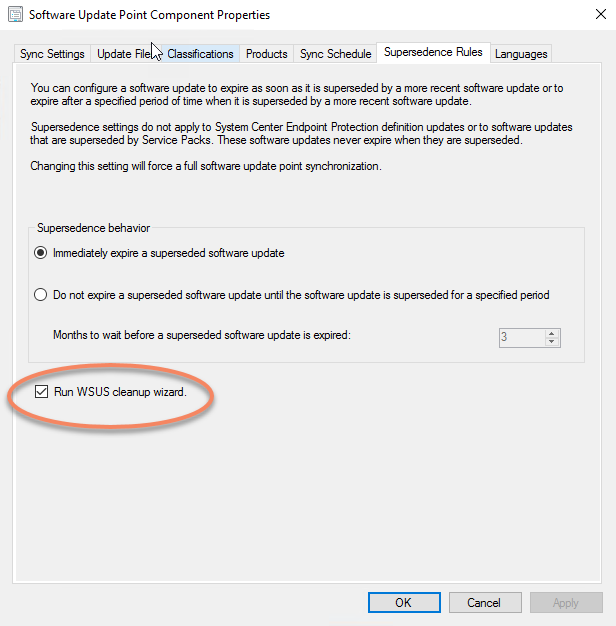
While you are at it, you will want to ensure that you are regularly cleaning out your WSUS database using the WSUS Cleanup task, built right into your Software Update Point Component settings under Supersedence Rules.
That’s all for now.
 About Douglas Griffin

