Configuration Manager Compliance Settings – Turning Off Auto-Remediation
2014-07-04 1 Comment
I’m often asked by both students and consulting clients about Configuration Baselines and Items in Configuration Manager 2012. These existed in Configuration Manager 2007 under the name Desired Configuration Management. Compliance Settings in 2012, which include Configuration Items and Baselines, is great feature and I find often under-appreciated.
The Client Agent in Configuration Manager 2012 includes a great new feature that performs a check to ensure that critical client components and prerequisites are installed and functioning. The reason this is nice should be obvious to any ConfigMgr administrators who have ever had to deal with a client computer with a corrupted WMI database. The client health task, which you will actually find as a scheduled task on Configuration Manager 2012 client computers, runs regularly, will identify and in many cases automatically repair a failed client, Prior to this feature, ConfigMgr administrators spent a lot of time searching for and manually repairing these failed clients.
There are times however when auto-remediation of the Configuration Manager client is not desirable. For instance on a Server. You may not want the CCMEval task to automatically make changes to Windows Management Instrumentation on a server as it might affect other services being hosted on that server. Fortunately it’s a relatively simple fix if you want to disable this auto-remediation. It’s also a great example of Compliance Settings in action.
On a system with the Configuration Manager client agent installed, there is a registry key that controls the behaviour of the CCMEval task. HKLM\Software\Microsoft\CCM\CcmEval\NotifyOnly. By default, this key is set to “FALSE”, so the client evaluation task will attempt repairs to the client when necessary. For a single server it’s a fairly simple task to change the value to “TRUE” if auto-remediation is inappropriate and be done with it. If you want to change the setting on multiple servers of course it becomes a bit more complicated. You could use Group Policy to push out the change to the setting, but I like to use a simple Compliance Setting check through Configuration Manager. It’s easy to set up.
First, we create a new Configuration Item which will detect the value of the registry setting.
For “Supported Platforms” I selected all of the Server operating systems.
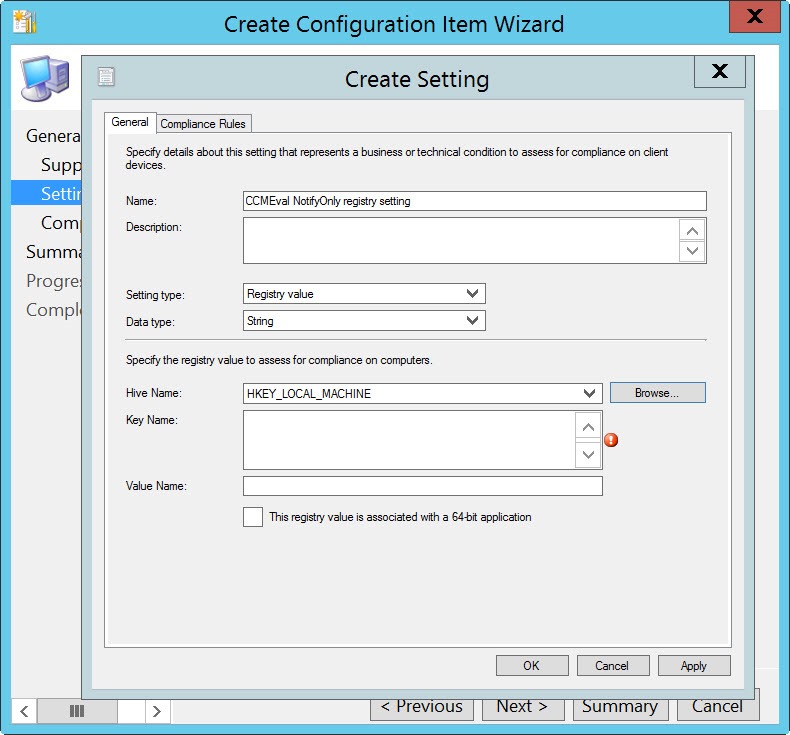
Under “Settings”, we identify the registry key to evaluate for compliance.Click “Browse”
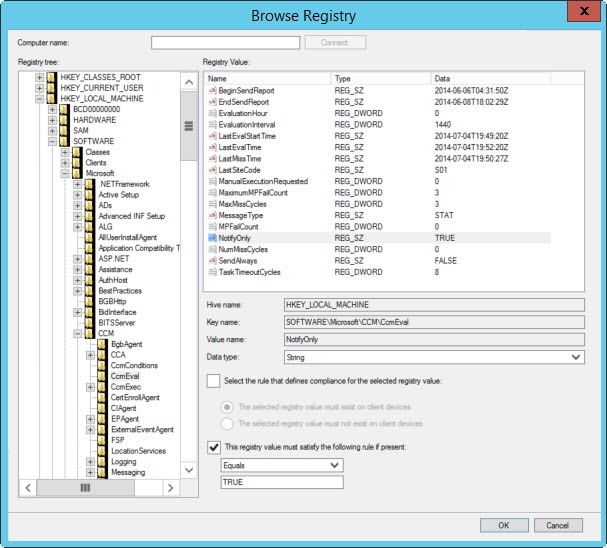
From the “Browse Registry” window, select the NotifyOnly key. Since my goal is to monitor the value of the key for compliance, I check the “The registry value must satisfy the following rule if it exists” box. The Operator is “Equals” and the value is “True” My rule will now check that the CCMEval\NotifyOnly key is set to “True”
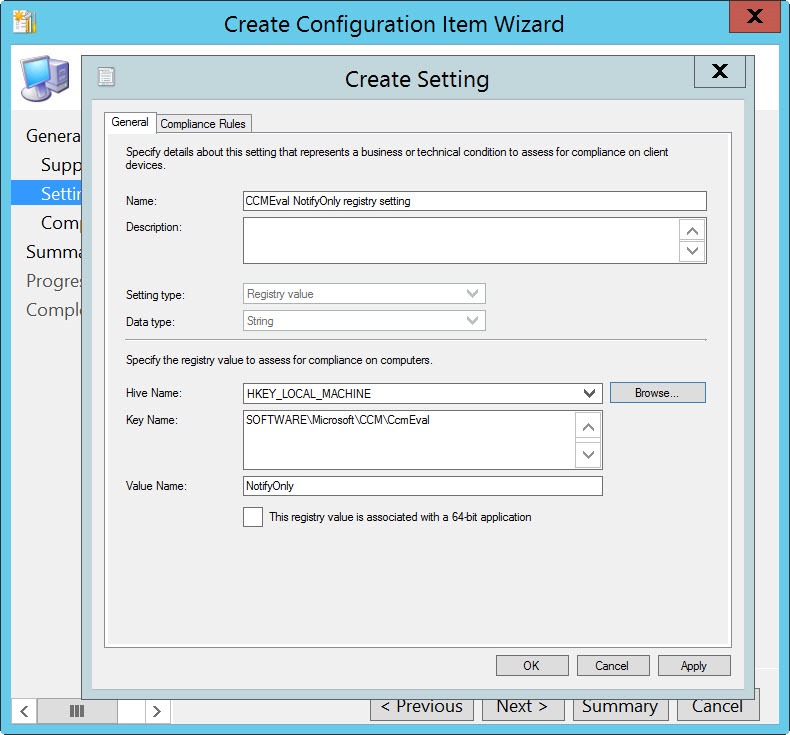
Once I have done that, on the “Compliance Rules” page, edit the new rule.
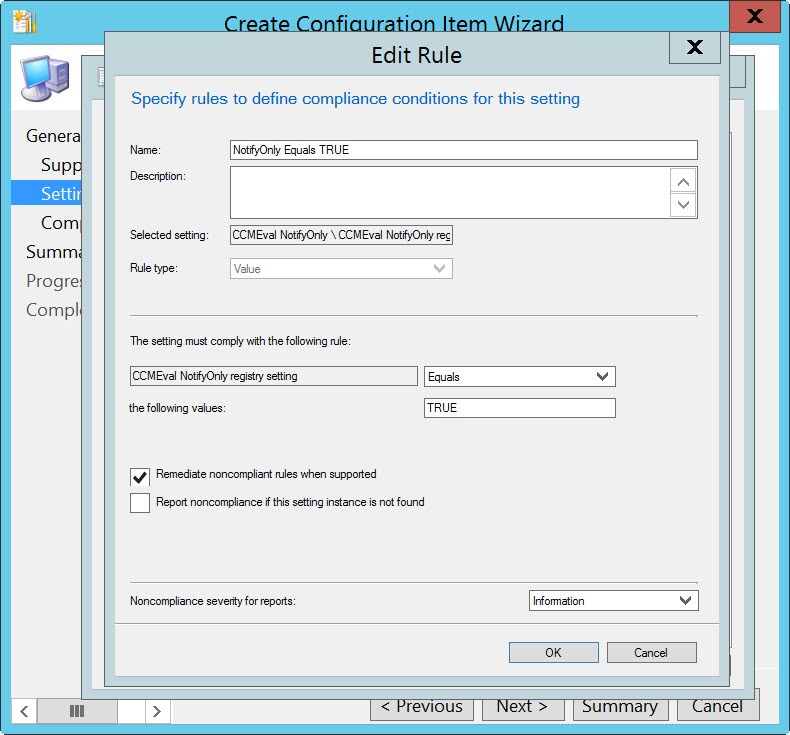
You will see your newly created rule. Check the “Remediate non compliant rules when supported” box to enable automatic remediation of this registry value.
Now we have a configuration item which will check the value of the CCMEval\NotifyOnly key, and if it is not set to True, will remediate the value.
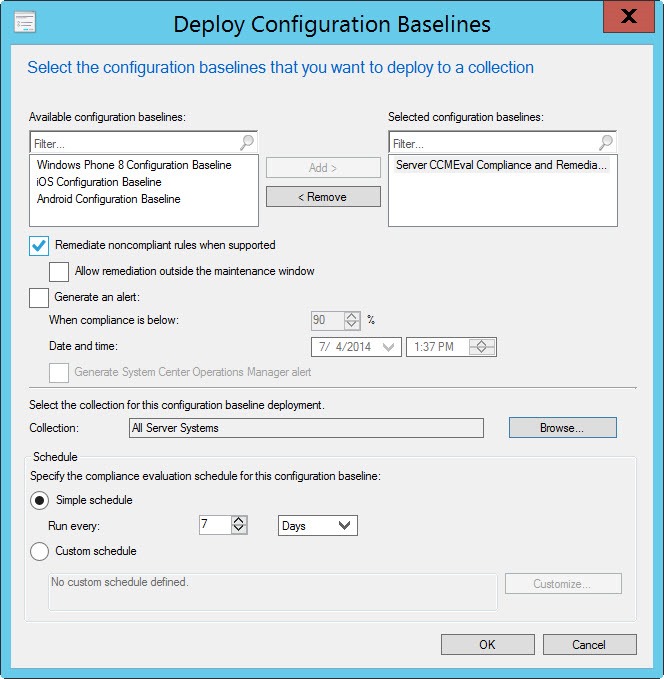
Once the Configuration Item has been created, it can be added to a Configuration Baseline deployed to an appropriate collection, in my case my All Server Systems collection.
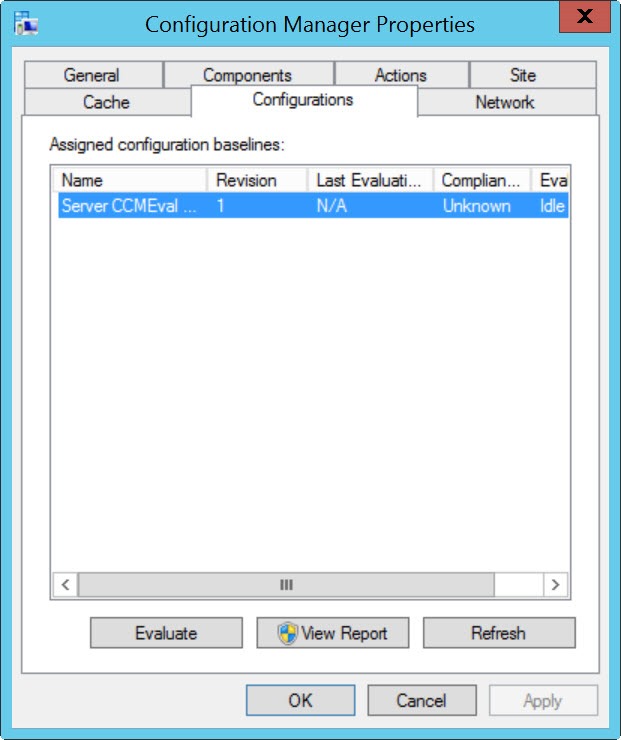
On the Configuration Manager client, the new Configuration Baseline arrives as part of the routine policy update, or by running a Machine Policy Retrieval and Evaluation cycle in the Control Panel Applet. On the Configurations tab we see the newly received baseline. Evaluation of the baseline would normally run on the schedule defined in the deployment, but we can click “Evaluate” to force an immediate evaluation.
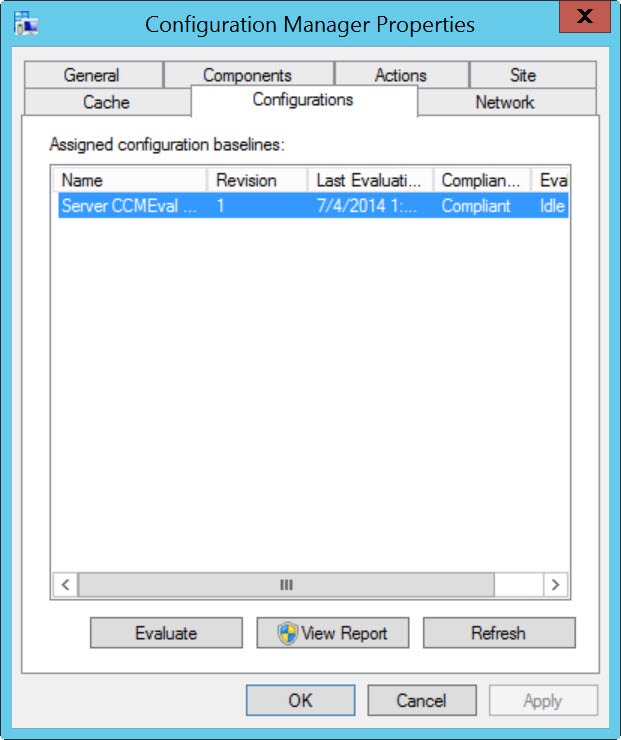
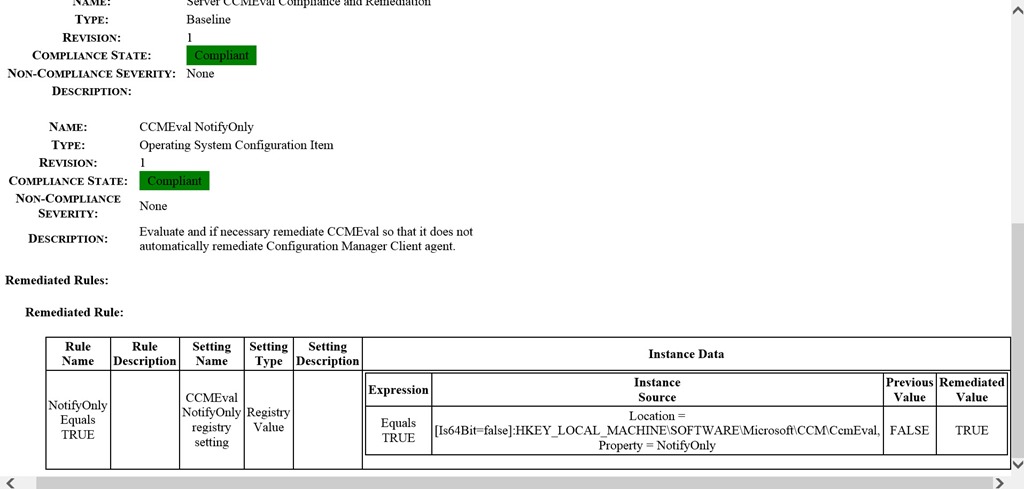
We see that once the evaluation is complete, the Configurations tab reports the baseline as “Compliant”
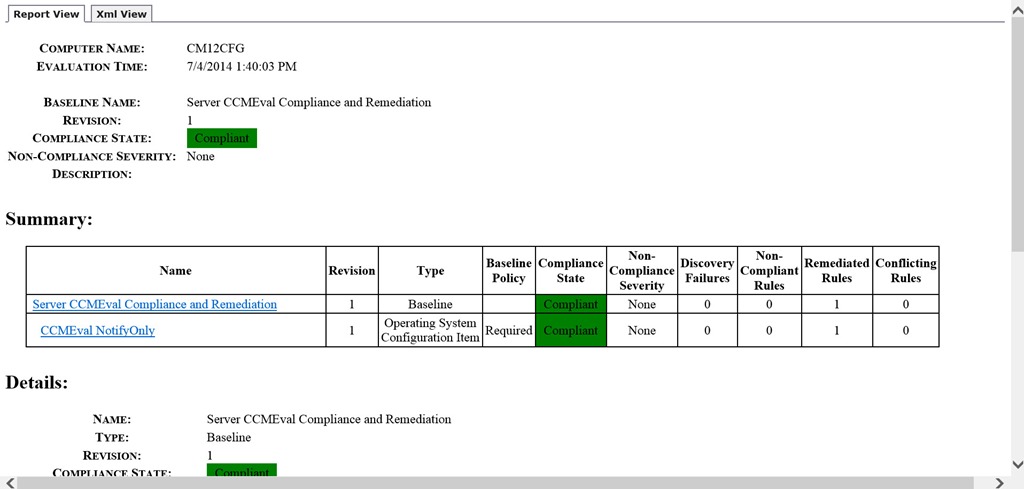
If you click “View Report” (note that a user would require Admin privileges to be able to generate the report) you will note that originally the registry key was not compliant, but that once the baseline ran, the remediated value of the registry key is now “True”
This is a simple yet useful example of how Configuration Items and Baselines can be used to ensure compliance with your corporate expectations.
 About Douglas Griffin
 Yet Another System Center Blog
Hi,
Wondering if you can help. Ive set up complience rules liek the one you have expleined. When I run the report I can see non complient keys listed and the old and remidiated values. The problem is when I check the registry via the editor the key keys still have their old values.
Any tips?
LikeLike