Desired Configuration Management in SCCM
2011-01-08 5 Comments
Configuration Manager’s Desired Configuration Management (DCM) functionality can be a bit confusing at first look, but really it’s a simple and powerful feature. DCM allows you to define corporate system configuration expectations, and then have Configuration Manager Client test for compliance and report back to your Configuration Manager site.
You can utilize best practice knowledge from Microsoft and third parties to monitor system compliance, and where necessary, Configuration Manager can then be leveraged to bring non-compliant systems into compliance. DCM is a tool which tests for compliance, DCM itself does not enforce compliance.
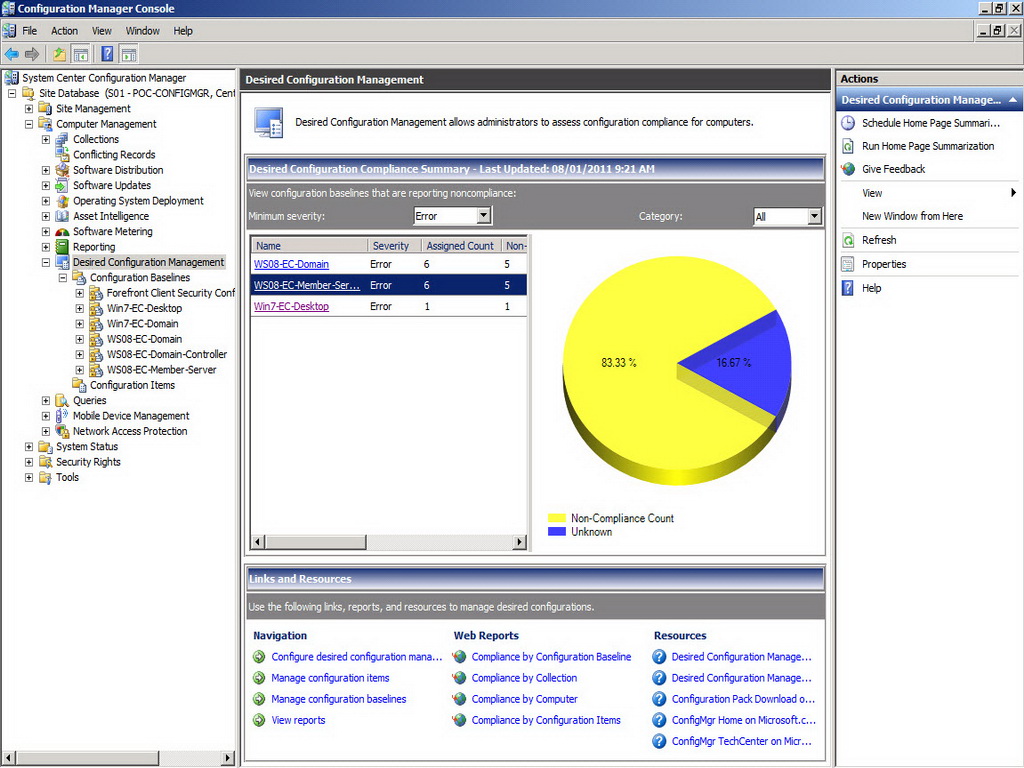
Figure 1: DCM Node in Configuration Manager
Many have discovered the hard way that clients who must run a configuration manager baseline must be running .Net Framework 2.0 or later in order to successfully run the configuration baselines.
You configure client compliance checks to run on a schedule, which are defined in the “Desired Configuration Management Client Agent” component in the “Client Agents” settings in the “Site Management” node. The client agent settings are simple – enable the DCM Agent, and define a schedule on which the clients will run their DCM scan.
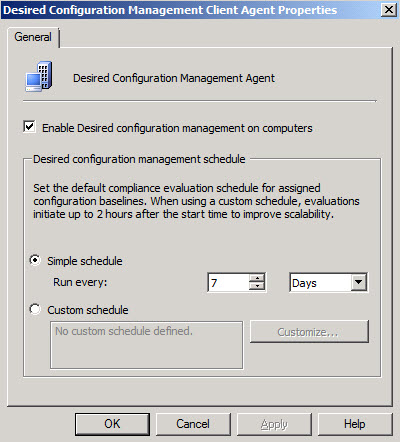
Figure 2: DCM Client Agent Properties
The actual configuration settings that clients will evaluate compliance against are defined in Configuration Baselines. These baselines consist of one or more “Configuration Items”. Baselines are groupings of configuration items which are then applied to a Configuration Manager collection. All members of the target collection will then receive the baseline as part of policy retrieval, evaluate compliance, and report back to the site database with compliance state.
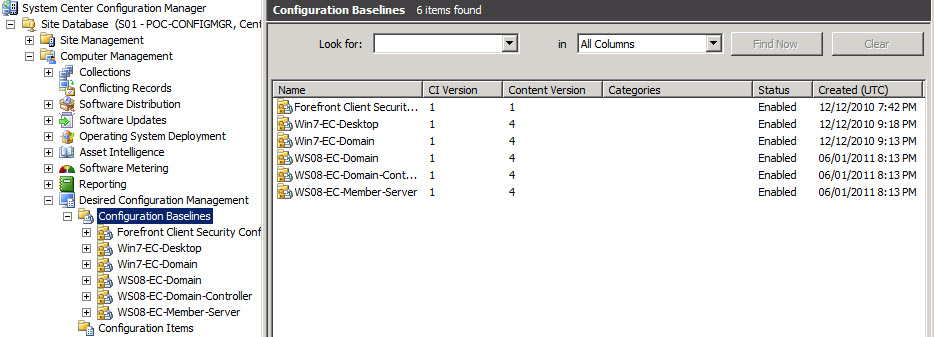
Figure 3: DCM Configuration Baselines node
Configuration Items are discrete items whose compliance you wish to evaluate, such as Registry Key values, WQL queries, IIS Metabase queries, etc. So a Configuration Item could ask a question about a value in the registry, or a WMI value. A single configuration item can query a single configuration setting, or multiple configuration settings. So you could, for instance, create a configuration item which checks for the existence of your corporate Anti-Virus product, or that evaluates firewall configuration to ensure it meets your expectations.
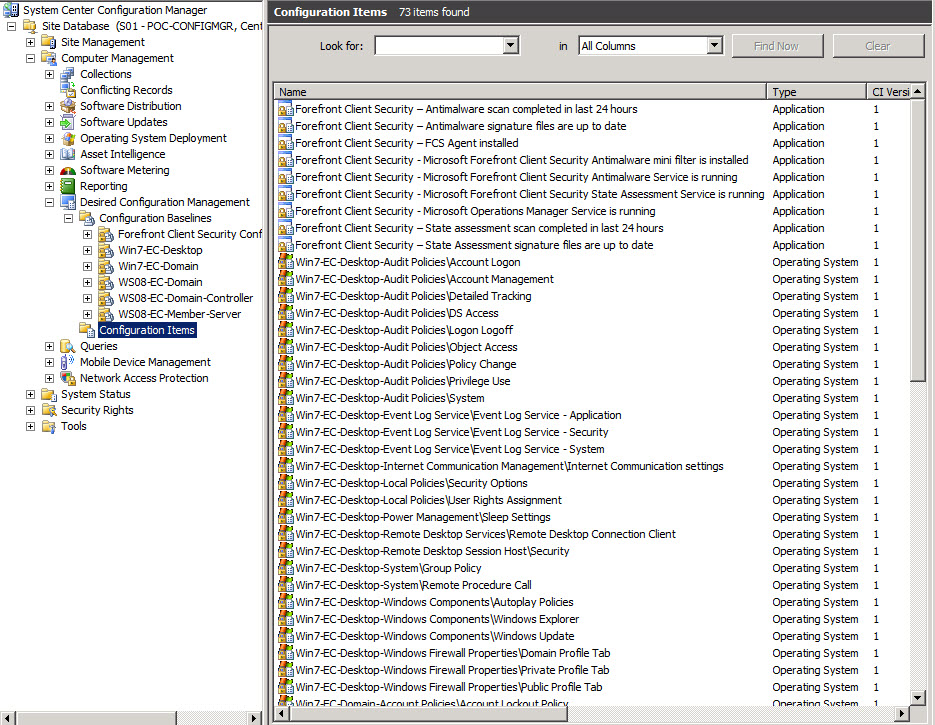
Figure 4: DCM Configuration Items node
You can add configuration items and baselines to Configuration Manager manually within the Configuration Manager console, or you obtain vendor configuration packs which can be imported into Configuration Manager.
Once you have created a Configuration Baseline in the Configuration Manager console, the final step is to “assign” the baseline to one or more collections. This can be done by selecting the baseline from the available baselines in the console, and then clicking “Assign to a collection” from the Actions pane. Choose the collection that contains the systems you would like to run the baseline. That’s it.
From the client perspective, once you enable the Desired Configuration Management agent, a new “Configurations” tab will be available from the Configuration Manager Control Panel applet. On this tab, you will see listed all of the configuration baselines assigned to this client, will have the opportunity to “Evaluate” compliance (remember that this will happen automatically on the schedule you defined in the client agent site settings), and if you have administrative privileges on the computer, you can view the compliance report that was generated as a result of the last evaluation cycle.
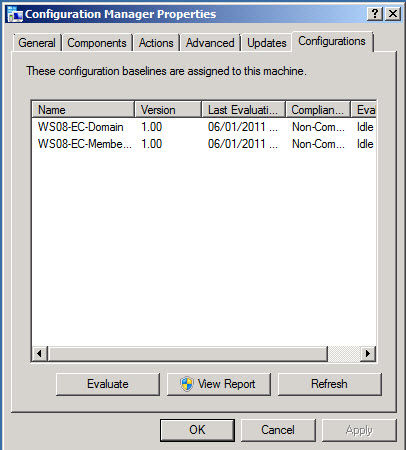
Figure 5: Configurations tab in Control Panel
Remember that the goal of DCM is to evaluate compliance. DCM in Configuration Manager 2007 does not enforce your compliance settings. If you want to reconfigure settings so that they are compliant, you could create a collection containing systems reported as Non-Compliant for a configuration, and target that system for a package you develop to bring the system into compliance.
Note: I will be posting a new blog entry soon highlighting the Microsoft Security Compliance Manager, which is a great tool from Microsoft which allows you to easily download Microsoft best practices baselines, customize them, and export them in a format that can be imported into Configuration Manager.
For more recent information on DCM, check out https://dbgriffin.wordpress.com/2014/07/04/configuration-manager-compliance-settings-turning-off-auto-remediation/
 About Douglas Griffin
 Yet Another System Center Blog
This is a great resource. Thanks so much.
I’m having a hard time getting my configuration baseline to run on a schedule. I’d like it to run every 30 minutes. It seems there are two places to set the schedule — in the DCM agent properties, and in the configuration baseline properties. Why is it done in two places? Am I doing something wrong here?
LikeLike
Jeff, there is a configurable compliance evaluation schedule for each deployed configuration baseline. Based on the baseline’s schedule, the client will evaluate compliance. Even if the client is offline, if it has downloaded the policy and all the referenced configuration items in the assigned configuration baselines, the client will perform an offline evaluation and forward the cached compliance data to the management point next time it connects.
There is also a default site compliance evaluation schedule – one week by default. You can modify to a preferred value if you want. When you assign a configuration baseline, this is the schedule that is displayed by default. Of course you can modify it during the baseline assignment process so that if necessary, each assigned configuration baseline has different compliance evaluation schedules. Once the client as run the scheduled compliance evaluation scan, that information is cached locally for a period of time and sent to the Management Point as state messages according to the “State message reporting cycle (minutes)” value configured in the Computer Client Agent Properties. This state message reporting cycle is, by default, 15 minutes.
When you say you are “having a hard time getting my configuration baseline to run on a schedule” I’m not exactly sure what you mean. Is it not running at all? Is it not reporting as expected? I would say that 30 minutes is a pretty short evaluation interval for client. The evaluation schedule initiates an evaluation that starts randomly within the next two hours. This randomized interval is intended to ensure that the management point is not overwhelmed with results from clients all performing evaluations at exactly the same time. You can see the actual evaluation time on the client’s “Configurations” tab and in DCM reports. After the client has checked that it has the current version of the configuration items referenced in the baseline it begins its evaluation. If it does not have current configuration items, the client downloads them from the management point.
LikeLike
So, the main issue I’m having is ensuring that the configuration baseline actually runs (i.e., evaluates) when it’s scheduled to. I need to monitor some very sensitive files, so it’s important for me to run evaluations as often as possible. For the baseline that I’m working with, I decided to change the schedule to run every hour, both in the DCM client agent setting and the actual baseline setting. When I check the status of the configuration baseline in the ConfigMgr client, it’s definitely not evaluating every hour. It looks like it’s evaluating every hour and forty five minutes or so, at best.
I’ll continue to monitor the intervals to see how often this runs within the next few hours.
Thanks for your help!
LikeLike
I think the problem you may be running up against is the randomization interval Jeff. Remember that after the client has ensured it has the latest Configuration Baseline and Items content, “The evaluation schedule initiates a compliance evaluation that starts randomly within the next two hours”. Sounds like you are seeing this randomization with the scans your clients are performing. You can read the details here http://technet.microsoft.com/en-ca/library/bb680847.aspx. You are looking for near real-time monitoring which really isn’t Configuration Manager’s strong point. You may find System Center Operations Manager a more appropriate tool for your monitoring requirements.
LikeLike
Thanks very much, Douglas. Since we already have SCCM deployed on the network, we’ll probably just stick with it and deal with the randomization feature. It’s not going to be a deal breaker.
Thanks for all your help!
LikeLike