Microsoft Security Compliance Manager
2011-01-08 4 Comments
The Microsoft Solution Accelerators team has a great product – the “Microsoft Security Compliance Manager”. One of the problems many of us face is evaluating which systems do, and which do not comply with our corporate expectations. For instance, which systems have invalid firewall configurations, which systems do not have a valid antivirus product installed, or which systems have administrator accounts with non-expiring passwords. Performing compliance audits of workstations or servers has been a bit challenging and Security Compliance Manager (SCM) can help.
SCM is a centralized location for downloading, maintaining and configuring security baselines, like the ones used by the Desired Configuration Management component of System Center Configuration Manager.
With this tool, you can easily download Security Baselines and import them into a centralized management console, customize imported baselines so they adhere to your corporate security expectations, and then export those baselines so they can be imported into Active Directory Group Policy or System Center Configuration Manager. This makes the process of generating useful baselines for Configuration Manager’s DCM much simpler. One of the best things about it – it is 100% free!
You can download the Microsoft Security Compliance Manager from http://technet.microsoft.com/en-us/library/cc677002.aspx. SCM installation will automatically install the required SQL Express instance (note that this version of SCM requires a SQL Express instance and does not provide the option to use an existing SQL server. Bit of a pain, but apparently on their to-do list for the next version).
After you have installed SCM, you can launch the tool from the start menu.
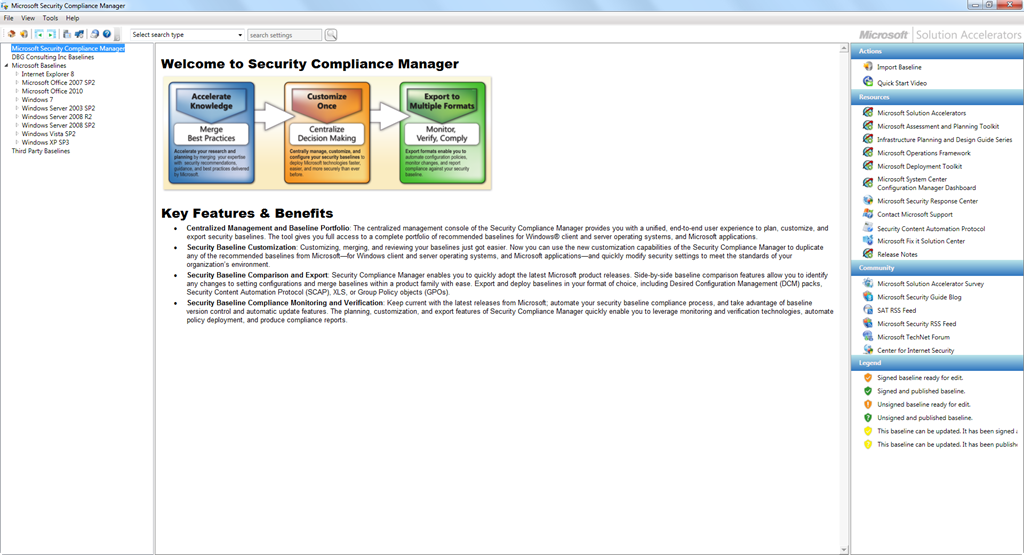
The first time you run Security Configuration Manager, you will be prompted to download and import Microsoft Configuration Baselines.
 In the navigation pane you will see the SCM Home Page, a node which will contain your custom baselines, a node for baselines you have obtained from Microsoft, and the final node which will list any third party baselines you have imported.
The Microsoft Baselines node will be where you see all of the baselines you have download and imported from Microsoft. These baselines have been digitally signed and published by Microsoft. They cannot be modified  without first duplicating the sealed baseline. A legend on the bottom right of the SCM Home Page describes the different states of the configuration baselines.
The details pane will initially display the SCM Home Page, with information about Security Compliance Manager.
In the far right pane, you will see links to available actions, resources and further information.
SCM makes it simple to download a library of available configuration baselines from Microsoft, which include Microsoft best practices configurations. They can be downloaded by selecting “Check for Baselines” from the Tools menu at any time.
 By checking for baselines, SCM will notify you if Microsoft has any new or updated baselines available for download, and if you wish will download those baselines and import them into the Microsoft Security Compliance Manager. Microsoft has a number of configuration baselines available which define current Microsoft best practices for specific products. When you select a baseline in the navigation pane, you will see one or more configuration items associated with that baseline in the details pane. By selecting an individual configuration item in the details pane, you can see further information about the setting being evaluated, the threat being addressed in the setting, applicable operating systems, and information about the default state. Note that the actual settings (bottom of the pane) are gray and cannot be modified. This is because the baseline is “sealed” by Microsoft. If you wish to modify a baseline from its default settings, you will need to duplicate the baseline. This will create a new, unsealed baseline, in the portion of the console reserved for your custom baselines.

One of the great features of the Security Compliance Manager is that it allows you, after customizing a baseline according to your corporate requirements, to export the baseline. Your baselines can be exported in several formats. 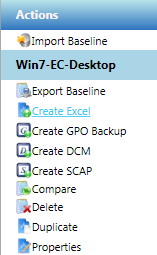
1. Create Baseline: This option creates a standard SCM baseline which can then be imported into other SCM consoles.
2. Create Excel: This option exports the setting(s) into an Excel workbook file which you can use for documentation or review purposes.
3. Create GPO Backup: Allows you to create a Group Policy Object backup from the baseline, which can then be used to apply the changes through Active Directory Group Policy.
4. Create DCM: This option will create a CAB file which can be imported into System Center Configuration Manager as a DCM baseline.
5. Create SCAP: Allows you to create a CAB file with adheres to the NIST Security Content Automation Protocol standard.
6. Compare: Performs a comparison of two baselines, displaying a report identifying baseline differences.
7. Duplicate: As the name implies, this allows you to create a duplicate copy of a baseline which you can modify.
Note that when working with a baseline that is not sealed, you will have some additional Actions available including; 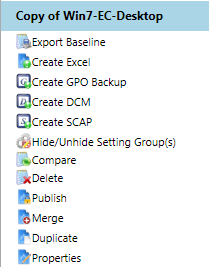
1. Publish: Allowing you to “seal” a baseline to ensure it cannot be tampered with or modified.
2. Merge: Merges settings from two baselines into a single baseline.
3. Hide/Unhide Setting Group(s): Removes unnecessary groups of settings from the baseline. This is a way of tidying up the baseline.
If you have worked with Windows clients and servers for a while, you are probably familiar with the “Security Configuration and Analysis” tool, which has been part of every version of Windows since 2000. SCA provided similar functionality in some ways to that of SCM, although SCM is far superior in its capabilities and functionality. The only feature provided by SCA that is not included in SCM was the ability to configure file system and registry security, but those settings can be easily configured through Active Directory Group Policy.
Security Compliance Manager makes it simple for SCCM administrators to customize baselines for use with Configuration Manager’s DCM functionality. I definitely suggest you download it and see how easy it is to use.
 About Douglas Griffin
 Yet Another System Center Blog
I have just posted an article about SCM v2 if you wanted to take a look http://www.grouppolicy.biz/2011/03/introducing-microsoft-security-compliance-manager-v2/
LikeLike
Excellent post Alan! Thanks for posting it!
LikeLike
Pingback: Microsoft Security Compliance Manager 2 beta now available on Microsoft Connect « Yet Another System Center Blog
Is it possible to export the applied policies on a server and analyse the export on a different station with the Security Compliance Manager?
LikeLike