Deploying Office 365 Click-to-Run as a Configuration Manager 2012 Application
2014-08-14 2 Comments
If you haven’t already, you will likely soon face the task of rolling out Office 365 Click-to-Run. Microsoft’s subscription based Office suite is gaining traction. As with all your other applications, you will probably want to use Configuration Manager to do so. Office 365 changes the way we deploy applications, and it may take a bit of digging to figure out how we manage the Office 365 product using Configuration Manager.
Essentially there are two methods of deploying Office 365 ProPlus:
- Install Office 365 ProPlus directly from the Office 365 portal. Installing on demand from the portal may work for only a few users, but does not scale well.
- Download Office 365 ProPlus, create a local deployment source, and then deploy it to your users.
This second option is the one we will review in this post.
I assume for the moment that you have already setup and configured your environment to support Office 365, and that is not what this post is about. If you have not yet setup your tenant, added your domain setup and configured your users for Office 365, there are plenty of great resources to help you, including http://office.microsoft.com/en-001/office365-suite-help/set-up-your-organization-for-office-365-enterprise-HA102818404.aspx.
The first thing you will need to do is to download the “Office Deployment Tool for Click-to-Run” from the Microsoft Download Center. This is the tool that will allow you to download and manage Office installations sources, products, languages, and deployment configuration options for Office Click-to-Run.
Once you have downloaded the executable (officedeploymenttool.exe) from the Microsoft Download Center, you run the executable. Two files will be created in the folder you select for the tool’s installation:
- Setup.exe
- configuration.xml
That’s all you need to get started. You have NOT already downloaded the Office source files, just the files you will use to configure and download Office.
You will need to edit the configuration.xml file (don’t worry, it’s not hard). With setup.exe you can perform 3 basic tasks – download the source files, deploy or remove Office 365, or create an App-V package containing Office 365.
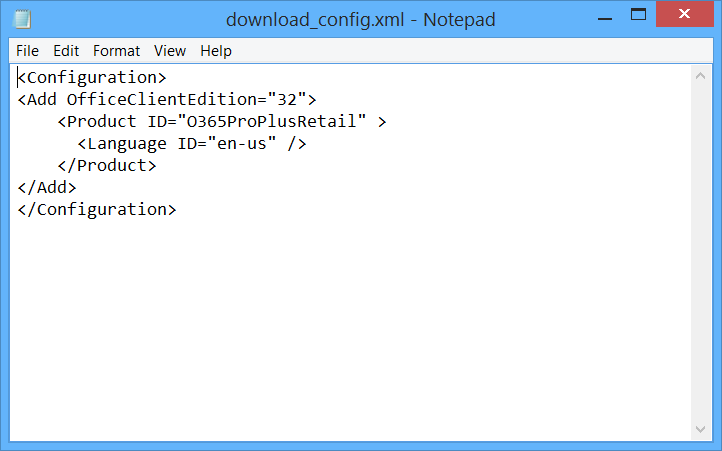
Generating a Click-to-Run for Office 365 installation source is your first task. Simple task – prepare a configuration file and run the tool in download mode. I have included a screenshot of my download configuration file (I edited the default configuration.xml and saved it as download_config.xml). This edited configuration file simply identifies the edition I want to download (32-bit), the product (O365ProPlusRetail), and the product language. Typically you wouldn’t require much more than this – remember we are just downloading the source files.

With the configuration file prepared, we run setup with the /download switch.

It will take a few minutes depending on your internet connection speed. An “Office” folder will be created, and the source files will be downloaded into that folder.
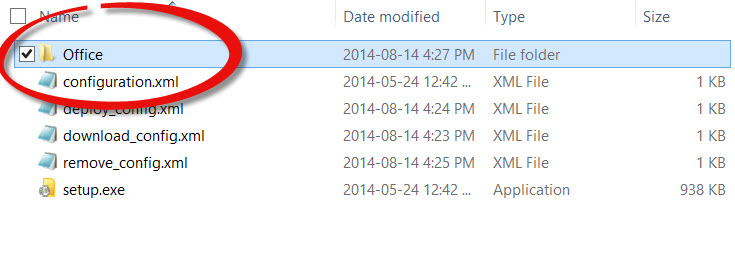
You may have noticed that the screenshot includes 3 configuration files as well as the original configuration.xml. The first is download_config.xml which will be used to download the source, the second is deploy_config.xml which will be used to deploy Office, and the third is remove_config.xml which, it should come as no surprise to learn, will be used to uninstall Office 365 at a later date if required. I will talk more about these configuration files later in this post.
Once the Office Click-to-Run download is complete, we move onto the next step:
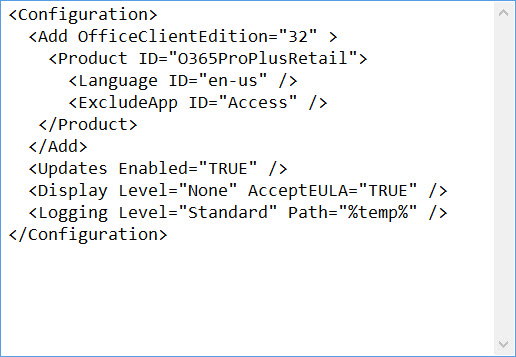
Configuring Click-to-Run for Office 365 for deployment to clients Similar to the configuration file we used for download, a configuration file needs to be customized which will drive the Office installation. For a complete technical reference for the configuration files we are using, go to http://technet.microsoft.com/en-us/library/jj219426(v=office.15).aspx. In my example, I’m installing the 32-bit edition of Office ProPlus Retail version, and excluding Access from the installation. Automatic updates are enabled, but since I have not specified an update location, the default Microsoft Click-to-Run internet source will be used. If you want to manually update your Click-to-Run Office clients, you would need to include an update source location as well. To eliminate the need for the end user to interact with the product installation I have set display level to “None” and accepted the EULA.
I have also created a configuration file to remove Office 365, which will be used in Configuration Manager should I later decide to remove the product. That configuration file is simple.
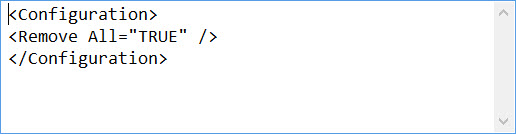
In the remove configuration file, I have not chosen to set the display level to “None”, so users will be prompted by setup to ensure that they really do want to uninstall Office. You could, of course, make this a completely silent uninstall instead by including <Display Level=”NONE” /> like we did in the deploy_config.xml file.
So now we have our downloaded source files for Office click-to-run and created three configuration files which will be used to drive the process. We have already used the download_config.xml file to download the source files, now we head over to the System Center 2012 Configuration Manager console to begin building our deployment.
For my testing I created an application to benefit from the new user-centric application model. You can create a package and program if you prefer, either will work. I am assuming you are familiar with creating applications in Configuration Manager.
I created an application to deploy Office 365 Click-to-Run.
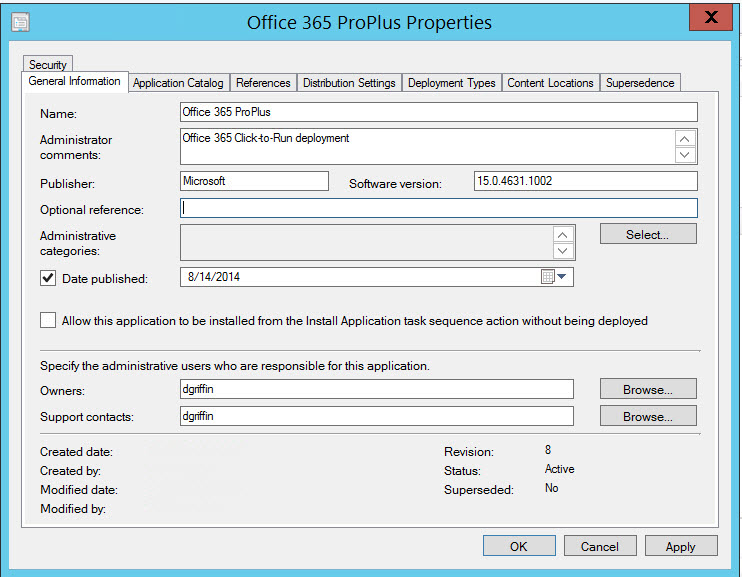
The application version I downloaded for testing is shown under software version, yours may be the same or a different version. You can find version in the Office Click-to-Run source folder\Office\Data.
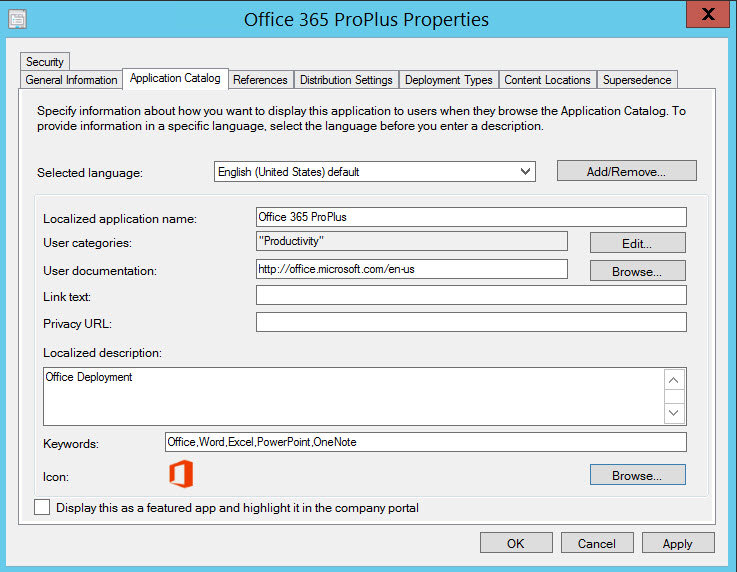
Settings on the Application Catalog page are useful if you use the Application Catalog in Configuration Manager. I like to populate as much information as possible – including the application icon
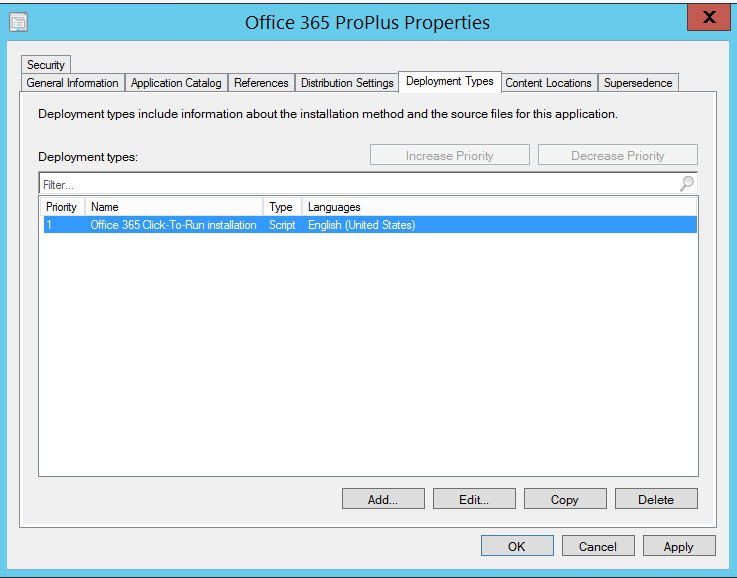
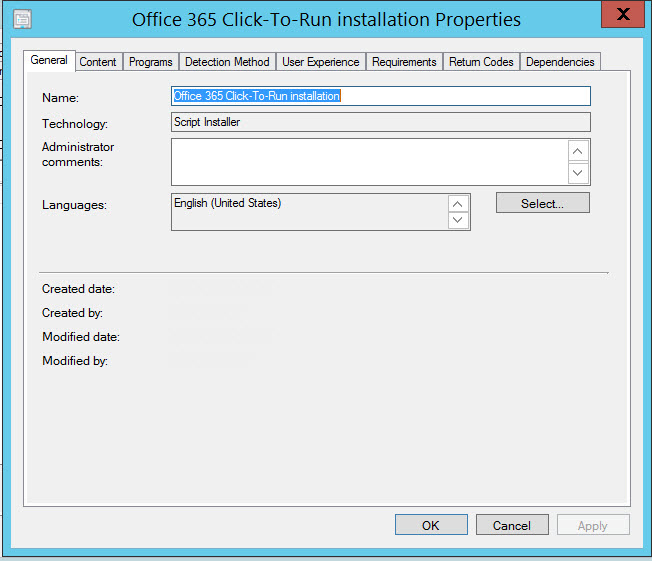
I created a single script installation deployment type for Office 365.
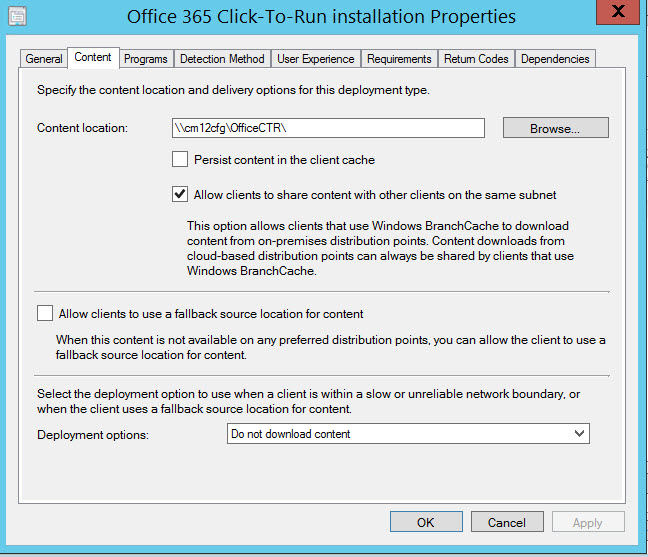
Note: Content Location will point to your package source directory, not the Content Location from the screenshot. This package source will contain setup.exe, your configuration files, and the office source files.
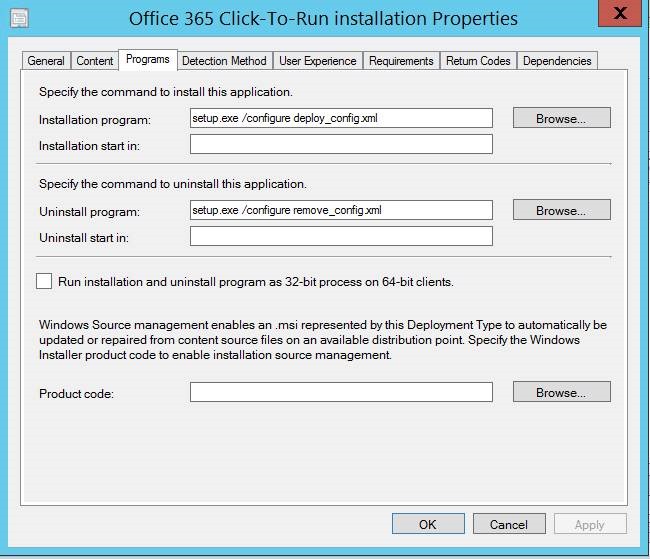
The deployment requires an Installation Program, I’ve included an Uninstall Program as well to allow for future removal. Remember that these reference the configuration files we created earlier. As you can see, we use setup.exe /configure to deploy or remove Office ProPlus. Since the configuration files are in the Office source folder we do not need to specify a path, just user setup /configure deploy_config.xml which will install office using the settings from the configuration file.
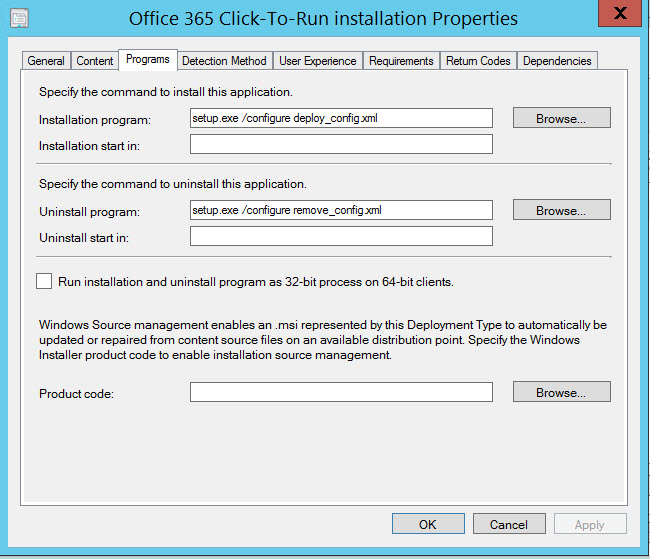
Detection Method is a requirement. I created the following detection rule. It looks for the existence of Office 15 Click-to-Run in the Program Files folder. Existence of that folder indicates that Office is already installed.

Because I am deploying Office using the Application to a collection of users, the User Experience tab must use Install for system to ensure users do not require admin privileges to install. If you are using a package / program instead to deploy the program must run with admin rights.
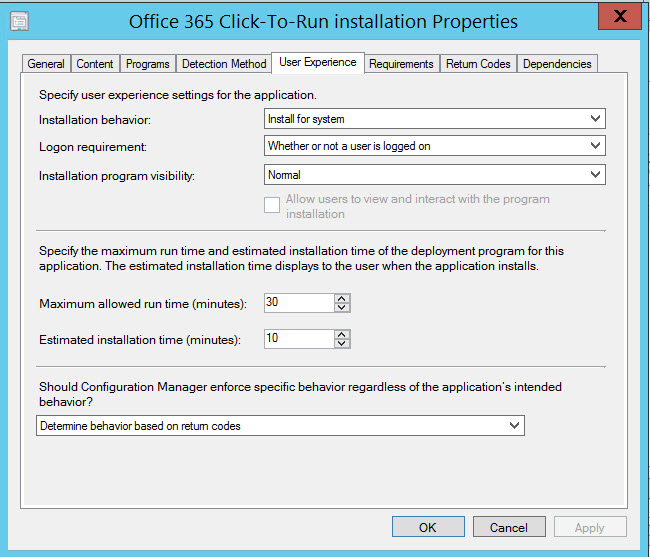
Now you simply create a deployment. Like any other application, Office 365 will deploy to users based on your deployment configuration.
 About Douglas Griffin
 Yet Another System Center Blog


Hello,
The tool you made, is it free to download somewhere ?
Thx
LikeLike
I’m not sure what “tool” you are referring to. I described the process of installing Office365 using Configuration Manager.
LikeLike